My initial FreeBSD setup and impressions
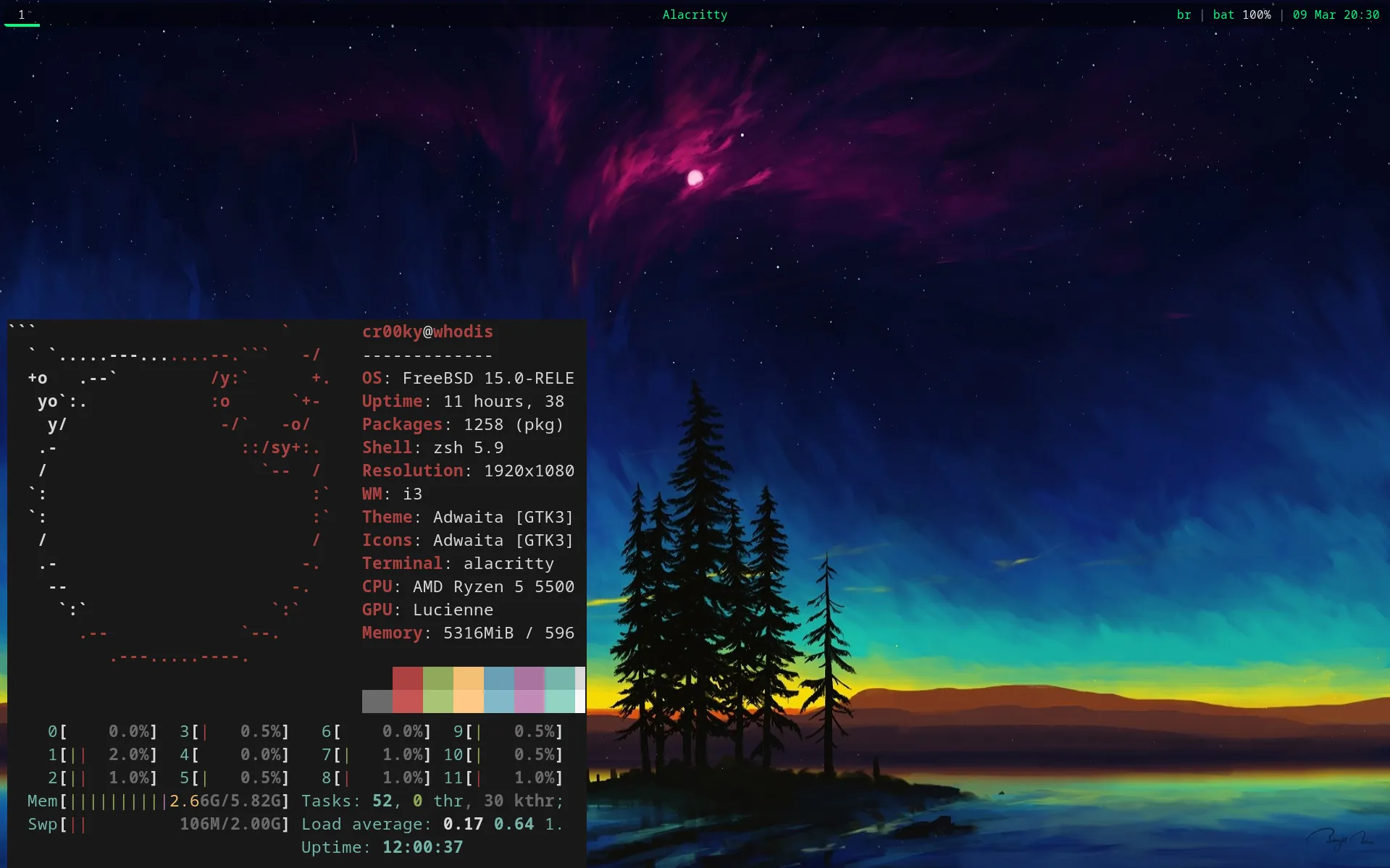
dotfiles: here
- Intro
- What I liked the most
- The setup and how to do some stuff
- i3 Setup
- Touchpad support
- Keyboard layout setup
- Fix audio on sound card (Realtek ALC257)
- Setup USB webcam (C920)
- Setup Mullvad Wireguard VPN
- Mount a veracrypt ext4 volume
- Setup PICO Fido Passkey
- What I wasn’t able to get working
- Yet to be tried
- What is pushing me away (atleast for now)
Intro
I’ve been using FreeBSD for the past month and it has been great, unfortunately I think I won’t be able to keep using it daily due to a couple of problems, this post will serve as a kind of checkpoint and maybe some guidance for people on similar hardware/setup that also want to try FreeBSD.
Most of the setup can be done by referencing the Handbook and the forum, what I’ll put here is most aligned with my setup but that is still easily discoverable on the internet.
This was on a Lenovo Ideapad 3 using i3wm under X.
What I liked the most
hier and pkg are what I liked the most, the system and user stuff are very clearly separated and organized.
I didn’t use ports directly because everything I needed was on the pkgs repository already, but it does seem pretty nice.
I very much liked rc and service too, service/daemon management felt pretty straightforward for my use-case with these two.
I can’t say anything about the stability because I didn’t update the system but every moment I made something work, the solution was definitive.
The setup and how to do some stuff
install and setup doas with vim
# pkg install doas vim
add to /usr/local/etc/doas.conf:
permit persist :wheel

permit nopass :wheel cmd /sbin/poweroff
permit nopass :wheel cmd /sbin/reboot
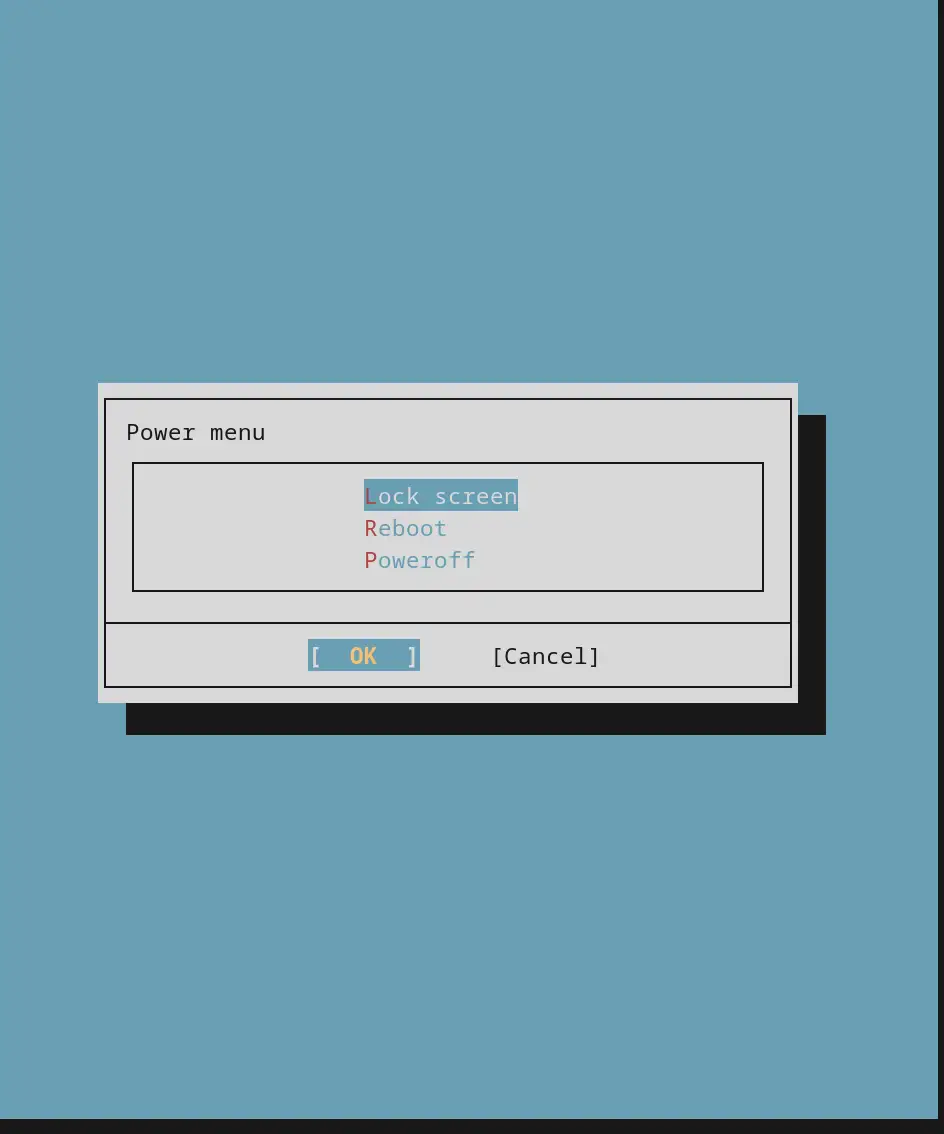
the last two lines are for the power-menu script to work as a normal user, this is how the power-menu looks like:
# pw mod group wheel -m user
i3 setup
install gpu drivers, xorg and i3 + related pkgs
$ doas pkg install drm-kmod xorg xorg-drivers i3 i3lock polybar dmenu nitrogen git
drm-kmod are the graphics drivers for AMD and Intel specifically.
enable graphics driver kernel module on boot:$ doas sysrc kld_list+=amdgpuadd user to video group:
$ doas pw groupmod video -m user
set i3 to be executed with startx
$ touch .xinitrc && echo "exec i3" >> .xinitrc
clone my dotfiles and put everything in its place
$ mkdir source/dotfiles && git clone https://github.com/c0nradLC/dotfiles.git source/dotfiles
Touchpad support
Touchpad basic functionality like moving the cursor and clicking when clicking on the touchpad did work by default, but I had to configure the tapping and scrolling behavior.
add to /boot/loader.conf:
hw.psm.synaptics_support="1"
hw.psm.elantech_support="1"
add to /etc/sysctl.conf:
kern.evdev.rcpt_mask=12
create file 30-touchpad.conf at /usr/local/etc/X11/xorg.conf.d with the following content:
Section "InputClass"
    Identifier "Touchpad"
    Driver "libinput"
    MatchIsTouchpad "on"
    Option "Tapping" "on"
    Option "NaturalScrolling" "on"
    Option "HorizontalScrolling" "on"
EndSection
Keyboard layout setup
create file00-keyboard.conf at /usr/local/etc/X11/xorg.conf.d with the following content:
Section "InputClass"
        Identifier "Keyboard1"
        MatchIsKeyboard "on"
        Option "XkbLayout" "br,us"
        Option "XkbVariant" ",qwerty"
        Option "XkbOptions" "grp:win_space_toggle"
EndSection
Fix audio on sound card (Realtek ALC257)
Reference: FreeBSD Forum post
add to /boot/device.hints:
hint.hdaa.number_where_your_card_is.nid20.config="as=1 seq=0 device=Speakers"
hint.hdaa.number_where_your_card_is.nid33.config="as=1 seq=15 device=Headphones"
This will make both the built-in speakers as well as any plugged headphones work as the same output device on mixer.
Setup USB webcam (C920)
install webcamd:
$ doas pkg install webcamd
enable webcamd on boot:
$ doas sysrc webcamd_enable=YES
add user to webcamd group:
$ doas pw groupmod webcamd -m user
enable cuse kernel module on boot:
$ doas sysrc kld_list+=cuse
set my webcam’s usb device to rc’s webcamd_0_flags:
Might be a good idea to add a fallback to the built-in webcam. Also, your webcam may be different, you can check through usbconfig.
$ doas sysrc webcamd_0_flags="$(webcamd -l | grep C920 | cut -d '[' -f 2 | cut -d ']' -f 1)"
Setup Mullvad Wireguard VPN
install wireguard-tools
$ doas pkg install wireguard-tools
go to Mullvad’s site and generate a wireguard key then download the config files for the locations you want.
extract and move the downloaded config files to /usr/local/etc/wireguard/
bring the wg conf you want using wg-quick:
$ doas wg-quick up wg_file_name
for instance, if you wanted to use the Bogota wg 001 server you would run:
$ doas wg-quick up co-bog-wg-001
of course, this is only if you don’t rename the file insice /usr/local/etc/wireguard/
enable it on boot with:
$ doas sysrc wireguard_enable="YES"
$ doas sysrc kld_list+="if_wg"
to set a default interface
$ doas sysrc wireguard_interface="wg_conf_file_name"
Mount a veracrypt ext4 volume
keep in mind that the veracrypt GUI doesn’t work for some reason, at least I wasn’t able to make it work normally like it does on linux.
install fusefs-ext2 for ext* support
$ doas pkg install fusefs_ext2
enable fusefs autoload on boot by adding the following to /boot/loader.conf:
fusefs_load="YES"
locate the connected volume and mount it with veracrypt:
$ doas veracrypt --text --filesystem=none /dev/da0
in my case da0 was the veracrypt encrypted drive, you can find yours by running geom disk list.
usually veracrypt mounts to /dev/md0, but you can check it with:
$ doas veracrypt -t -l
mount the veracrypt mounted volume to our mount point using fuse-ext2:
$ fuse-ext2 /dev/md0 /mnt/veracrypt -o ro
you can check other fuse-ext2 options for -o, ro stands for read-only in this case
then to unmount:
$ doas veracrypt --text --unmount
Setup PICO Fido Passkey
install necessary libs/pkgs:
$ doas pkg install libfido2 u2f-devd py311-pyu2f pam_u2f
I’m not really sure that pam_u2f is needed but I left it here just in case.
enable pcscd:
$ doas sysrc pcscd_enable="YES"
start pcscd:
$ doas service pcscd start
add user to u2f group:
$ doas pw groupmod u2f -m user
What I wasn’t able to get working
it actually seems ridiculous to me that I wasn’t able to get the following stuff working on my setup:
- a display manager (yes, I call
startxeverytime I login) - bluetooth (yea, I went back to using CABLES to connect devices to my laptop)
- HID devices to work completely
Yet to be tried
I still want to learn and understand jails.
I want to give it a shot to some og gaming, the titles I’d like to run are: Half-Life and Deus EX (2000).
run a linux VM under bhyve.
What is pushing me away (atleast for now)
it has nothing to do with the things I didn’t manage to work.
what made me quit is a problem I’m having with my wifi and wireguard connections.
I need to be connected to a VPN for work, and at least once a day both the wifi and the wireguard stop working for about 10-15 minutes, also overall my connection speed seems less stable.
sometimes the wifi works just fine (I check it by pinging some server) while the wireguard interface just doesn’t work, then starts working out of nowhere. Sometimes specific networks that I know are nearby don’t show up when I scan.
it’s also a pain to switch my wifi connection in the rare occasions that I need to, you need to edit /etc/wpa_supplicant.conf with the SSID and psk of the network and then restart netif, that’s fine actually, but the problem is that it never works right away for some reason and I end up having to reboot the PC.
I recognize that this probably is a skill issue but I don’t want to go through this little stress every single day, once I have more patience and knowledge on the subject I want to find out why this happens and fix it.